

Runcam WiFiLink 2
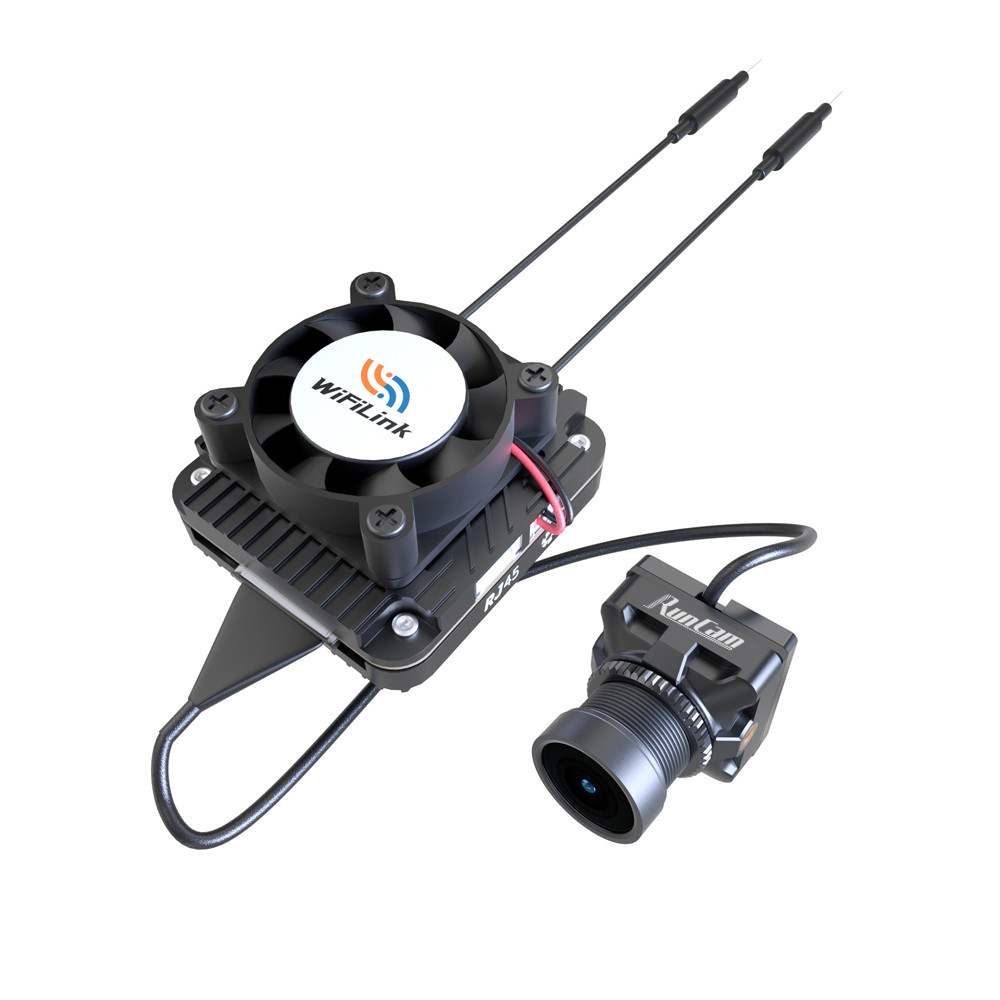
Specifications
| Image Sensor | IMX415 |
|---|---|
| Field of view | FOV 160° |
| Power range | DC 9-22V (BEC power supply highly recommended. Non-direct power supply from Lipo battery) |
| Lens module size | 19*19mm/M12 lens/MIPI cable 130mm (Vista compatible) |
| Mounting hole spacing | 25.5mm*25.5mm |
| PCB size | 30.6mm*33mm |
| Weight | 30g(with fan) / 25g (without fan) |
| Antennas | IPEX connector |
| PA | 28dBm(FCC), 20dBm(CE) / 630mW(FCC), 100mW(CE) |
| WiFi chip | Runcam custom RTL8812EU (5MHz, 10MHz, 20MHz) |
| UARTs | 1 |
| SOC | SigmaStar SSC338Q |
| Firmware | ssc338q_fpv_openipc_urllc_aio_nor.tgz |
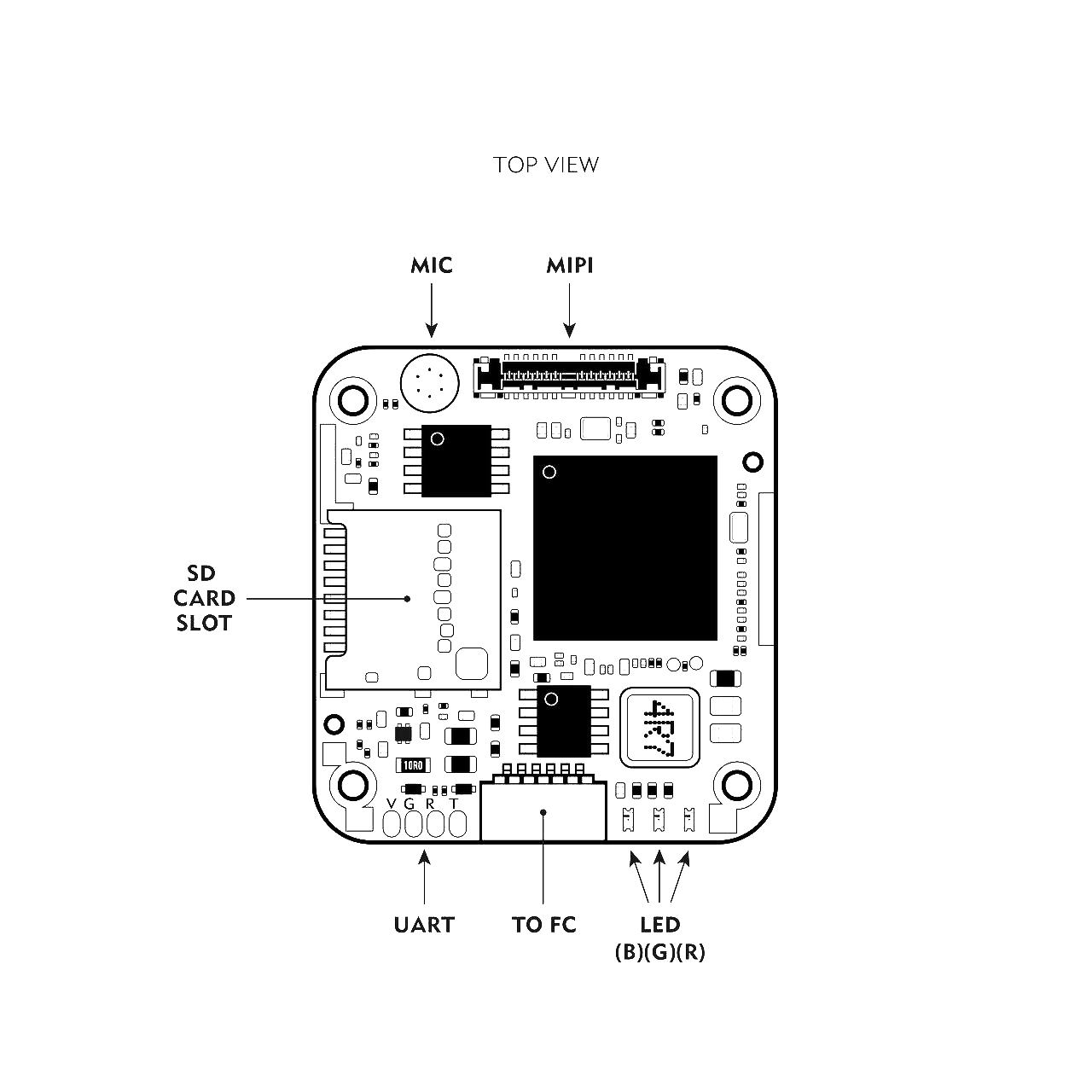
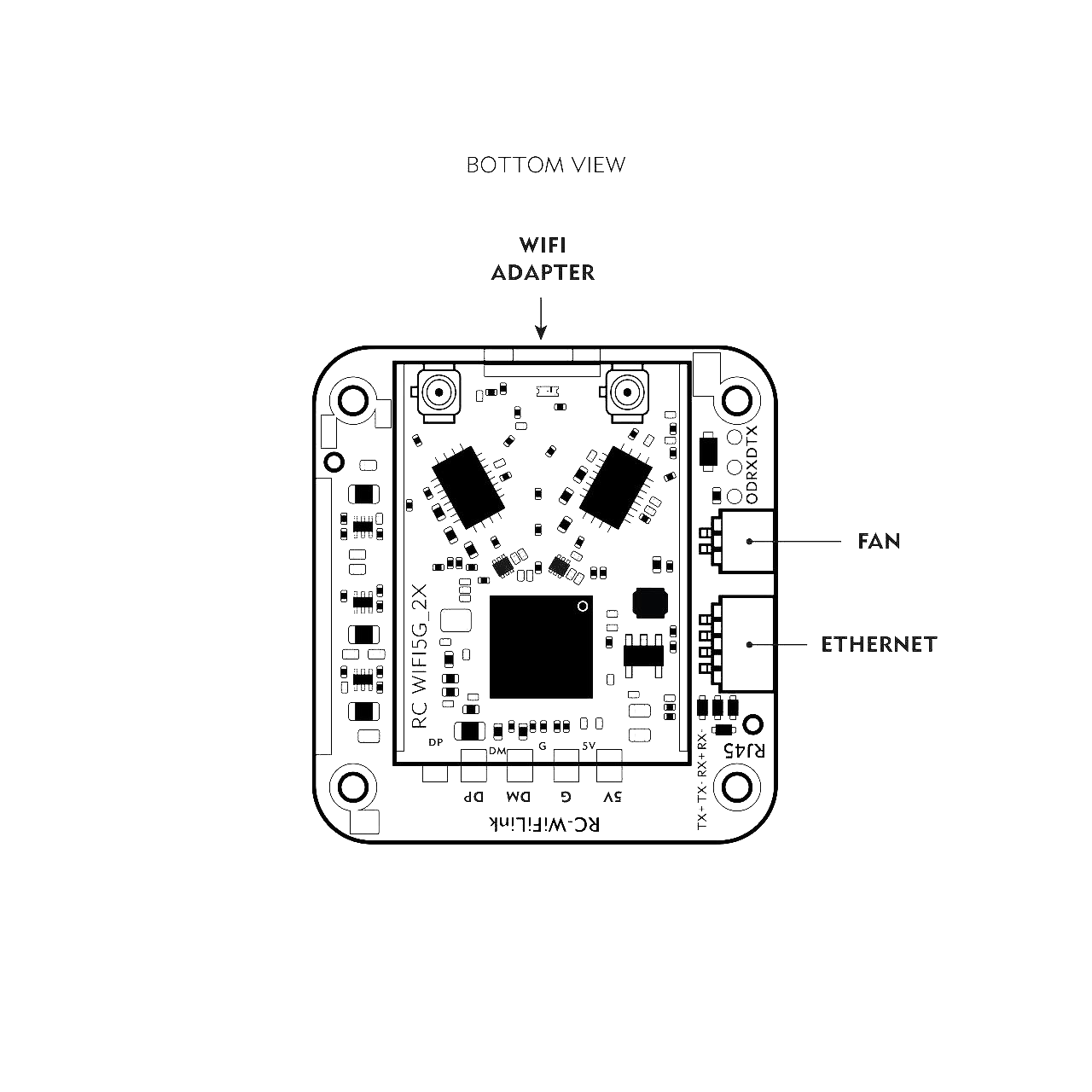
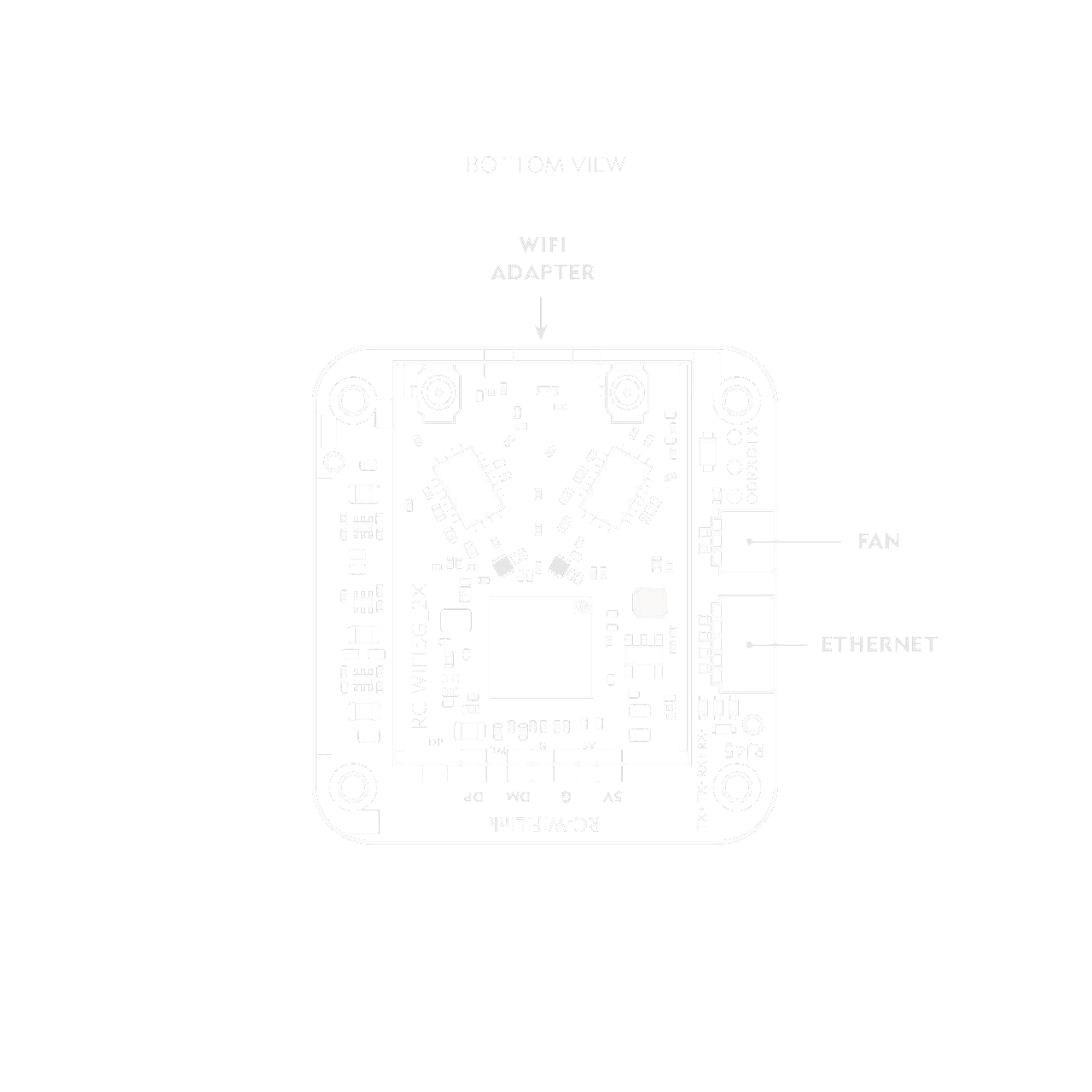
Layout
Basic setup
For advanced setup guide please read this article.
What you need
- Flight controller with betaflight, INAV, Ardupilot.
- Runcam WiFiLink 2 + Pixelpilot
- RTL8812AU wifi adapter (Comes in package if you bought WiFiLink2-G)
- USB C OTG adapter (Comes in package if you bought WiFiLink2-G)
- A fairly modern Smartphone with Android 13 or 14 installed. The smartphone should have a good processor or you`ll get big latency
- Internet connection
Hardware Setup
-
Connect the antennas to VTX.
-
Connect the 4 cable to UART on FC dedicated to connecting digital VTX’s(as on image below) or direct solder to UART on FC(you should connect power input to BEC output on FC).
Attention: the cable color codes will match only on one end. Double check your wiring (gnd to gnd, vcc to vcc, etc)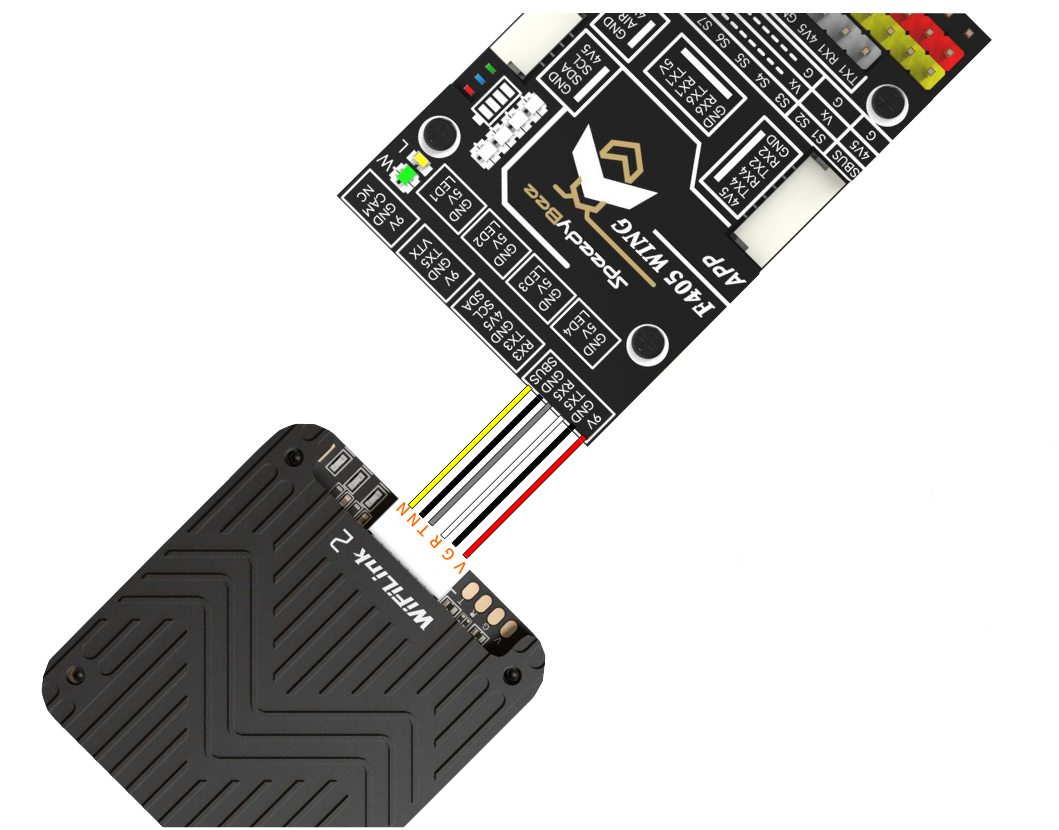
-
Insert a formatted micro SD card into the VTX. The slot is on the bottom of the unit, when the fan faces up.
-
Connect an Ethernet cable supplied with your VTX to the device.
How to get gs.key?
- Insert an empty, formatted micro SD into the VTX. The card
pads need to face the board. The slot for the micro SD can be on the ‘inside’ of the board so you might need to disassemble it to put the card in.
- When you first power up your VTX, the device will create a ‘user’
file and a ‘gs.key’ file. Take the SD card out from your VTX and copy the GS.key file into your VRX(android device, PC, etc.).
How to connect to android GS
- Install Pixelpilot.
- Copy gs.key to your android device.
- Connect RTL8812AU based WiFi adapter to your android device.
- Open Pixelpilot using popup.
- Press the gear icon. Set up: Channel - 161; Bandwidth - 20.
- Add gs.key. Press the gear icon > press WFB-NG > press gs.key > select gs.key that you copied on stage 2.
- Power on your VTX.
If you don`t see image after 30 seconds, restart Pixelpilot. If even this does not help use this check list.- Check lens cover.
- Check gs.key.
- Power cycle your android device and VTX.
LEDs function
| LEDs status | Indicates |
|---|---|
| Green off | Audio off |
| Green on | Audio on |
| Green fast flashing | Firmware upgrade |
| Green slow flashing | Recording on |
| Blue on | Startup |
| Blue fast flashing | WiFi error |
| Blue and green alternating flash | Overheat warning (>90℃) |
Basic setup summary
After basic setup you will get cheapest modern digital FPV system, but you`ll not see OSD, to setup OSD you need to read advanced setup article. If you want to read instruction from manufacturer, please read this.
Flashing
U-Boot bootloader
Runcam ships them with their proprietary bootloader - which is less flexible than the OpenIPC one and makes it harder to recover. It’s recommended to replace it before flashing. If you have bad flash with the old (default) bootloader you’ll have to get CH341A flasher and flash it by clamping the chip pins first.
To replace the bootloader, use the OpenIPC Companion app: connect to the VTX, open the Firmware tab, expand the Bootloader section, select the bootloader for your SoC, tick the risk confirmation and click Replace Bootloader. This overwrites /dev/mtd0 and erases /dev/mtd1, so don’t interrupt power while it runs.
How to diagnose a failed flash - Runcam’s way
This info was gathered from the RunCam Support on 06/2025:
To determine if U-Boot is still accessible, the current of the Wifilink2 should be measured and compared to given values: This can be achieved by a regulated power supply and/or a multimeter. Power should be applied via the 6pin FC connector
| Case | Voltage | Amps | Power | Status |
|---|---|---|---|---|
| 1 | 13.5 V | 0.182 A | 2.5 W | U-Boot still accessible. This suggests the firmware flash failed, but U-Boot is still present. Firmware flash error, can be fixed with UART flashing. |
| 2 | 13.5 V | <=0.144 A | <= 1.9 W | U-Boot missing/unavailable. Need full reflash using chip programmer. |
But sometimes a WiFiLink2 with a working bootloader but dead Linux/OpenIPC can consume 0.1A while still able to be recovered.
Recovering from bad flash
If you already have the OpenIPC bootloader you can remove the heatsink and use DRX DTX pads (next to the fan connector) to connect it to your CP2102, CH340G, FT232RL, or similar USB-UART dongle and access the serial console from your computer to flash it again (using tftp or putting files on an SD card). Note that exposed RX/TX pads are UART2 while you need UART0 (DRX DTX).
If you have Runcam’s bootloader - you’ll have to get CH341A adapter and flash the OpenIPC one first.